Host guide: listing and managing your place
From your first link to ongoing hosting: find each setting, what it changes, and the direct route to your own listing.
Contents
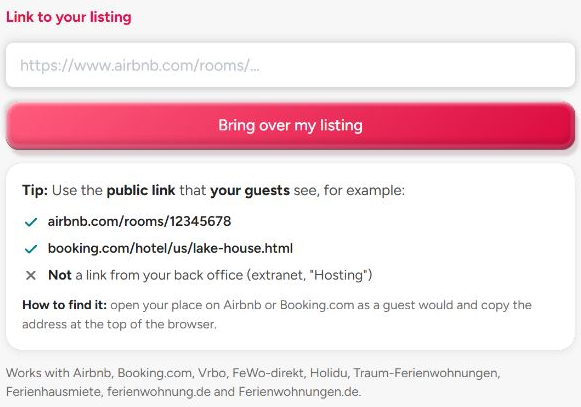
Fast import from another portal
- What it is:
- Paste the link of your listing on Airbnb, Booking.com, Vrbo, Holidu, Traum-Ferienwohnungen or Ferienhausmiete, and confirm it is yours.
- What it does:
- You can check an existing listing link and see a preview before signing in. An account is needed only when you continue. The subsequent full import copies available information. A complete draft is submitted for review; if required information is missing, finish it in the listing assistant.
The individual settings
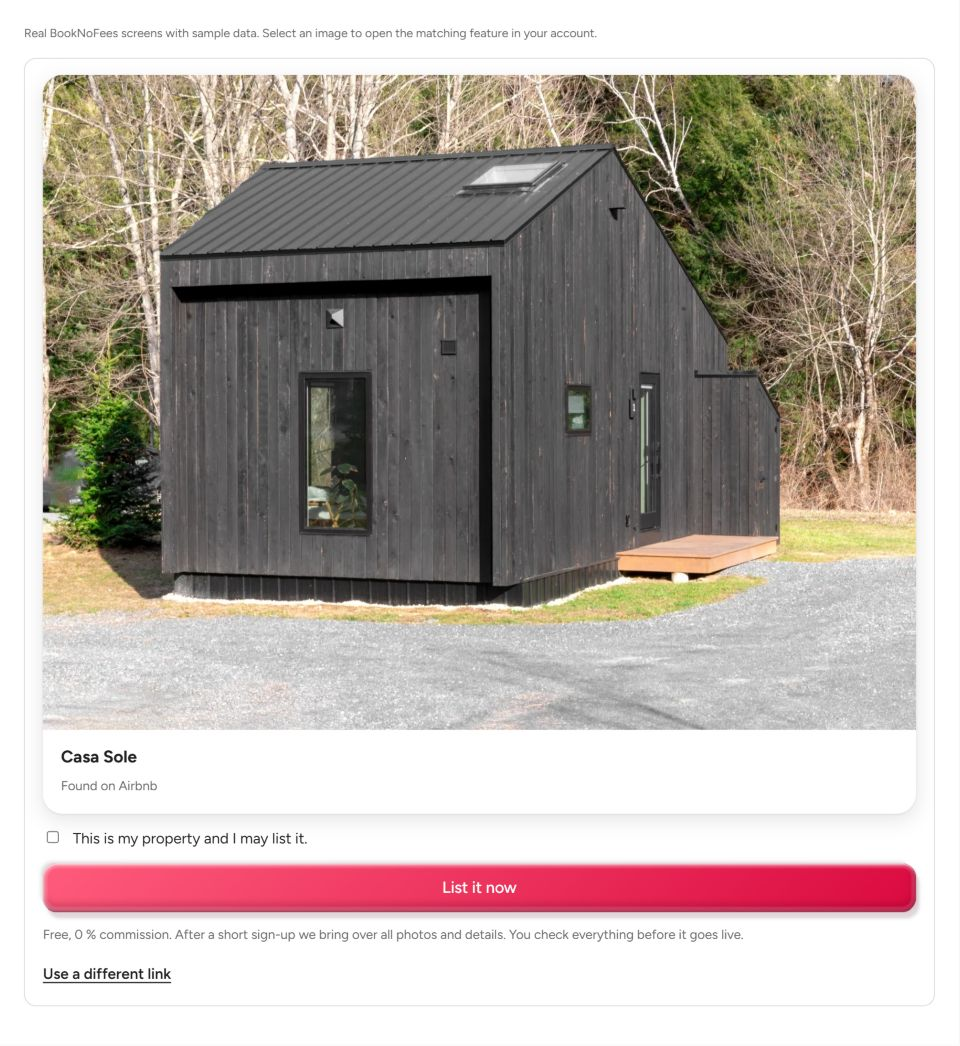
2. Check the preview and continue
Check the picture, name, and available details. Confirm that you have permission to use the content, then continue. If you are not signed in, create or open your account now; the selected link is carried over to the subsequent import.
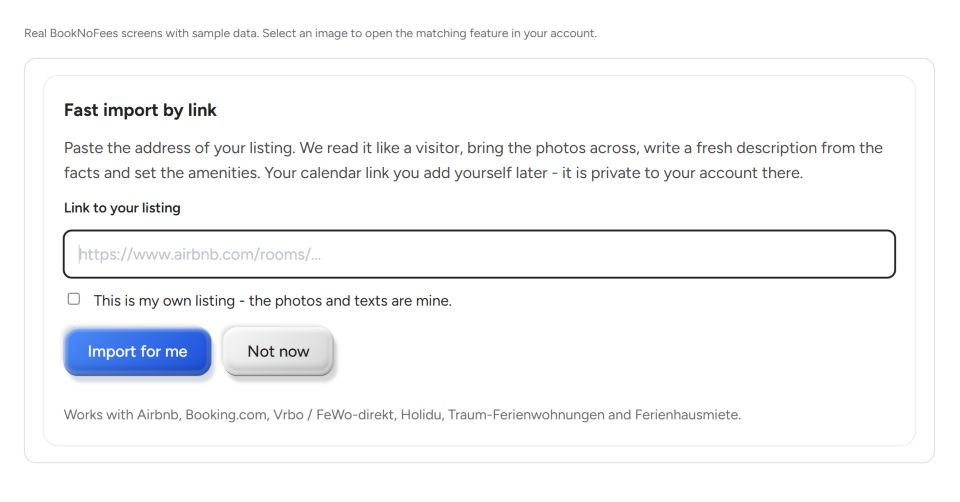
3. Complete missing information
After signing in, the full import begins. Photos, text, and other available details are copied; check the address, map position, amenities, and prices. If required details are complete, the listing is submitted for review. Otherwise, a draft remains for you to complete in the assistant. Publication follows approval.
Your first listing
- Sign in and open “Start a listing”.
- Choose the accommodation type and add its location, guest capacity and amenities.
- Upload photos, set your price and submit the reviewed details for approval.

More details
- What it is:
- Ten screens that ask only what nobody else can answer for you: the kind of place, whether guests get all of it, the address, the map pin, guests and beds, amenities, photos, three highlights, the price, and a review.
- What it does:
- Every step is saved as you go; you can stop and carry on later, and the site reminds you of an open draft. Title and description are written for you from your answers, discounts are preset (10 % from 7 nights, 20 % from 28), house rules and check-in times get sensible defaults. Everything can be changed afterwards in your account.
The individual settings
Ten steps to review
Choose the property type and the space you rent out. Add the address and map position, guests and sleeping arrangements, amenities, photos, highlights, and price. On the last step, check the summary and submit your listing. Step 10 of 10 means you have reached the last page; only submitting starts the review.
Save your changes
Open your property in My listings and choose Edit. Use the Save button to keep changes. After a successful save, you return to the overview. An unfinished draft instead takes you back to the listing assistant.

Photos
- Choose your property under “My listings” and open “Edit”.
- Go to “Photos” and upload your pictures.
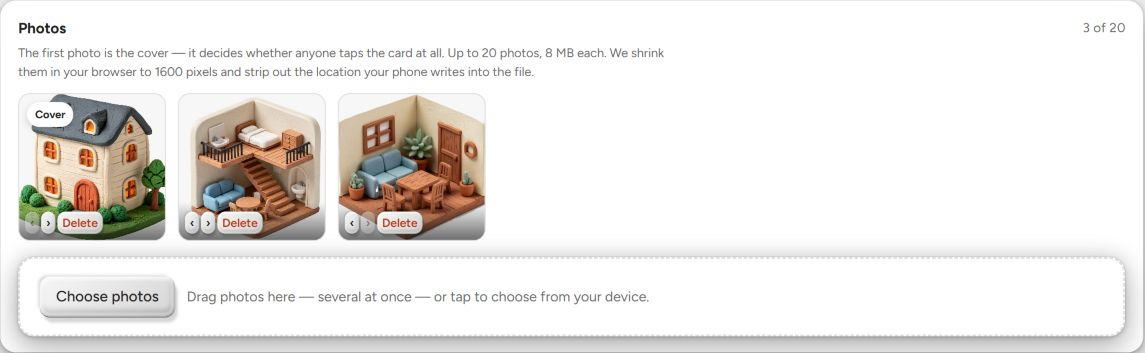
- Use the arrows on the pictures to change their order. The first picture is your cover image.
More details
- What it is:
- Up to 20 photos per listing, 8 MB each; JPEG, PNG, WebP, HEIC and AVIF all work. The first photo is the cover.
- What it does:
- Photos are shrunk in your browser to 1600 pixels and the location your phone writes into the file is stripped before upload. Five photos are needed to publish; eight are recommended. Use the arrows to change the order; the cover decides whether anyone taps the listing card.
The individual settings
Add, arrange, and remove photos
Upload JPEG, PNG, or WebP files. You can use up to 20 photos, each no larger than 8 MB. Arrange them with the strongest image first, and remove unsuitable shots. Check the crop on a large screen too.
Title, description and languages
- What it is:
- The text of your listing: a title, a description, and their translations into every language BookNoFees speaks.
- What it does:
- If you write nothing, the description is written from your answers and the photos, and the title from what makes your place special. A title you typed yourself is never touched; you can lock it. The web address is made from the English title once, at publication, and never changes afterwards. Guests in every country read the listing in their language.
The individual settings
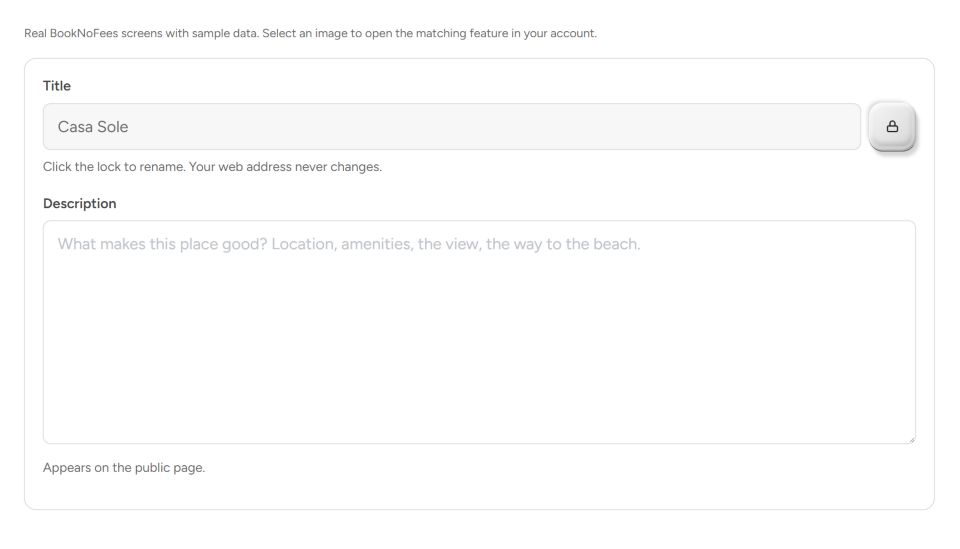
Title and description
Unlock the title field using the padlock before changing the name. Describe the location, rooms, and distinctive features in the description. Precise details help guests more than general advertising claims; check automatically imported text particularly carefully.
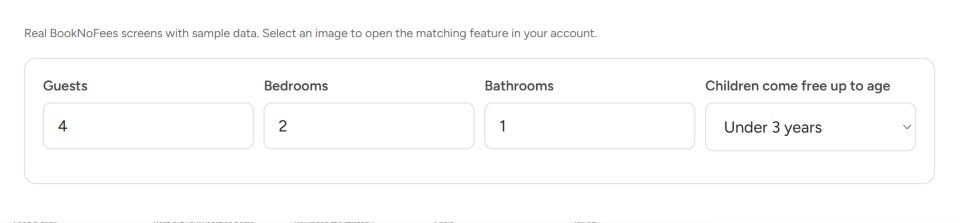
Guests, bedrooms, and bathrooms
Maximum guests sets the permitted occupancy. Bedrooms and bathrooms describe the accommodation. These numbers are not the number of identical rooms that can be booked separately; manage those under Multiple identical rooms.
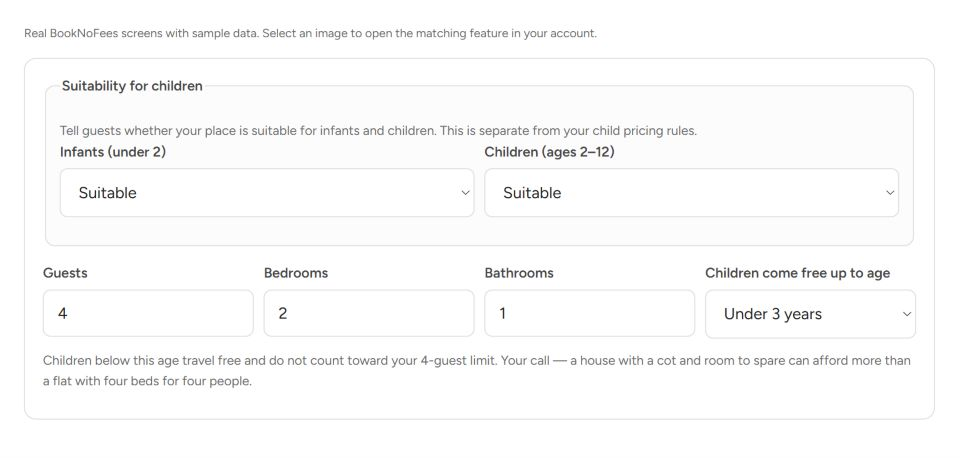
Infants and children
Specify separately whether the property is suitable for infants and children. Not specified is a separate choice. If children are welcome, you can set the age below which children stay free. If both groups are excluded, this pricing setting is hidden.
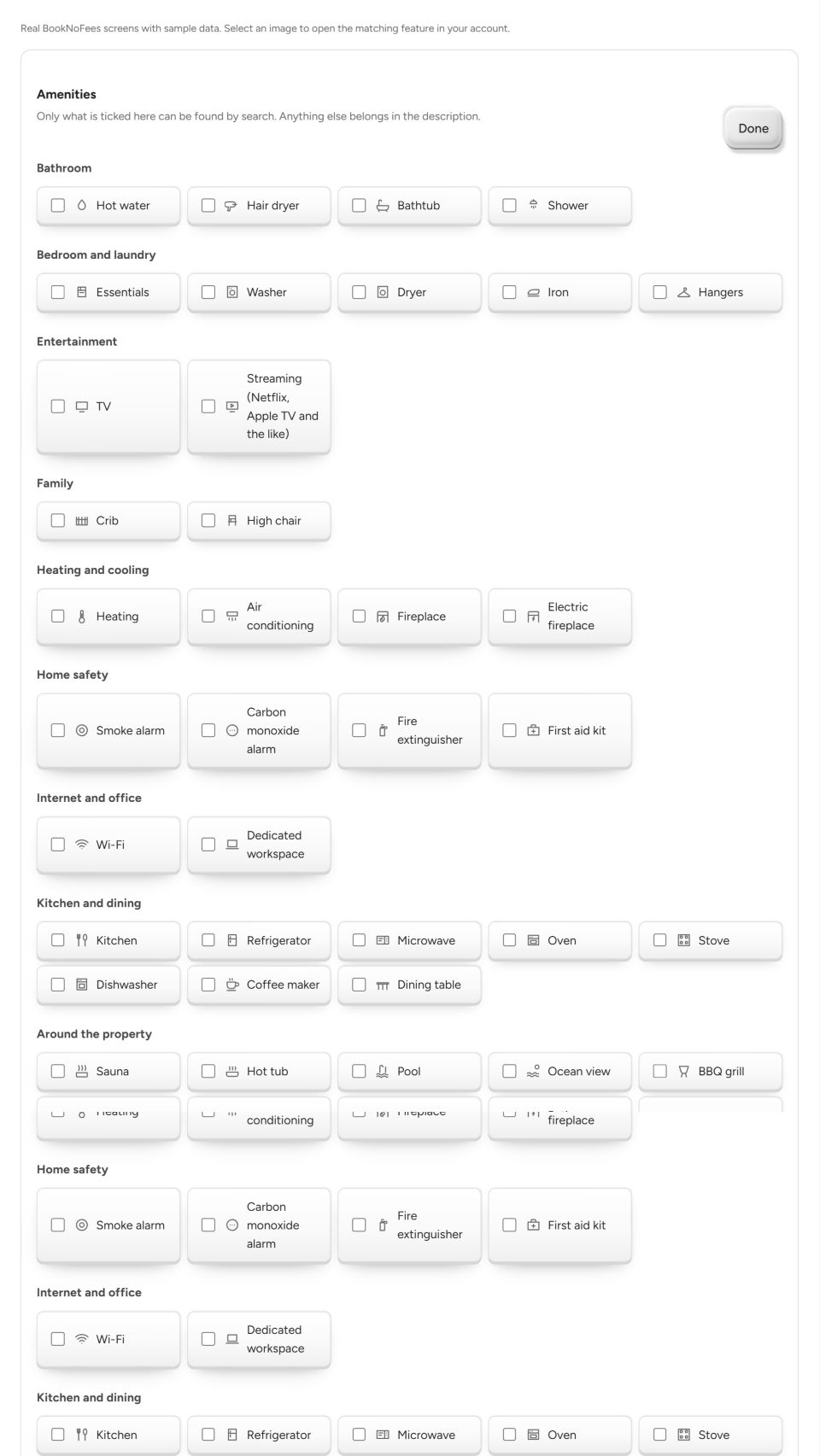
Amenities by category
Open the amenities and select only features that are actually available. Groups cover bathroom, bedroom and laundry, entertainment, family, heating and cooling, safety, internet and workspace, kitchen and dining, outdoors, parking and access, and services. Saving applies your complete selection.
- Bathroom
- Hot water · Hair dryer · Bathtub · Shower
- Bedroom and laundry
- Essentials · Washer · Dryer · Iron · Hangers
- Entertainment
- TV · Streaming (Netflix, Apple TV and the like)
- Family
- Crib · High chair
- Heating and cooling
- Heating · Air conditioning · Fireplace · Electric fireplace
- Home safety
- Smoke alarm · Carbon monoxide alarm · Fire extinguisher · First aid kit
- Internet and office
- Wi-Fi · Dedicated workspace
- Kitchen and dining
- Kitchen · Refrigerator · Microwave · Oven · Stove · Dishwasher · Coffee maker · Dining table
- Around the property
- Sauna · Hot tub · Pool · Ocean view · BBQ grill · Electric grill · Garden view · Garden · Patio or balcony · Fire pit
- Parking and access
- Free parking · EV charger · EV charger (for a fee) · Elevator · Step-free access
- Services
- Pets allowed · Self check-in · Long stays allowed
The price, and what guests see
- What it is:
- Your price per night is the amount you receive. Guests see it plus 3.9 %, which covers the cost of the payment and of refunds; BookNoFees earns nothing from it.
- What it does:
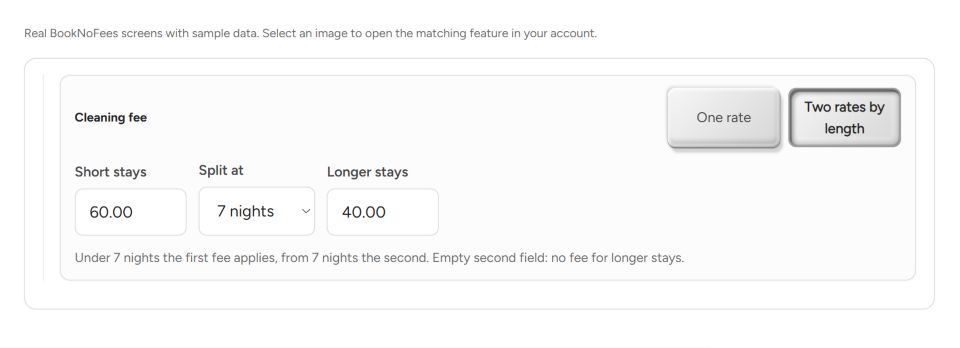
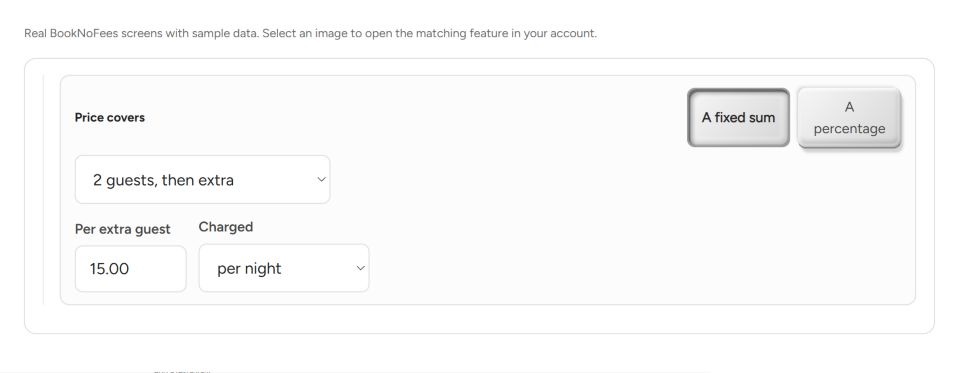
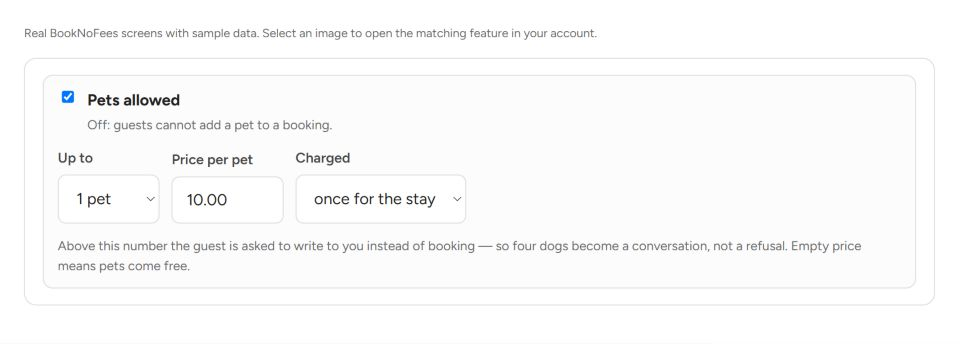
- Cleaning fee: one rate, or a lower one for short stays and a higher one from a number of nights you choose. Extra guests: the price covers everybody, or a number of guests and then a fixed sum or a percentage per extra guest, per night or per stay. Pets: allowed or not, up to a number, with a fee per pet. Children can be free up to an age you set.
The individual settings
Nightly rate and the price guests see
Enter your nightly rate in the price field. The adjacent preview shows the nightly price displayed to guests. Cleaning, additional guests, and other selected services are added according to your rules. With a Smoobu connection, follow the notice about managing prices.

One or two cleaning rates
Choose one cleaning rate for all stays, or two rates. With two rates, set the night threshold and the rates for shorter and longer stays. Cleaning is a fee per stay, not an additional nightly rate.
Included guests and additional people
Set how many guests are included in the base price. For additional guests, choose a fixed fee or percentage surcharge. With a fixed fee, also choose whether it applies per night or once per stay.
Pricing rules and seasons
- What it is:
- The rules that change the nightly price by date or length of stay: minimum stay, short-stay surcharge, weekend surcharge, weekly and monthly discounts, early-booking discount, seasons, and prices for single dates.
- What it does:
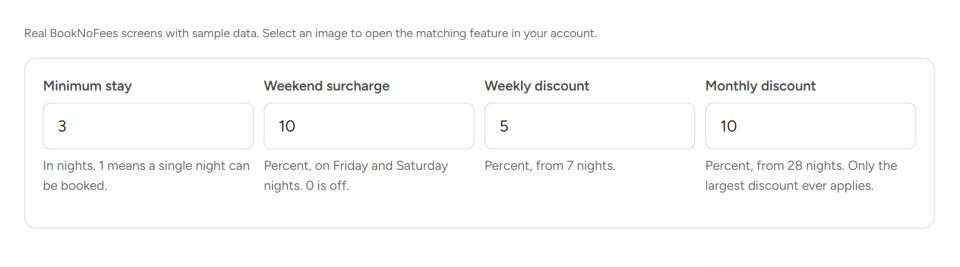
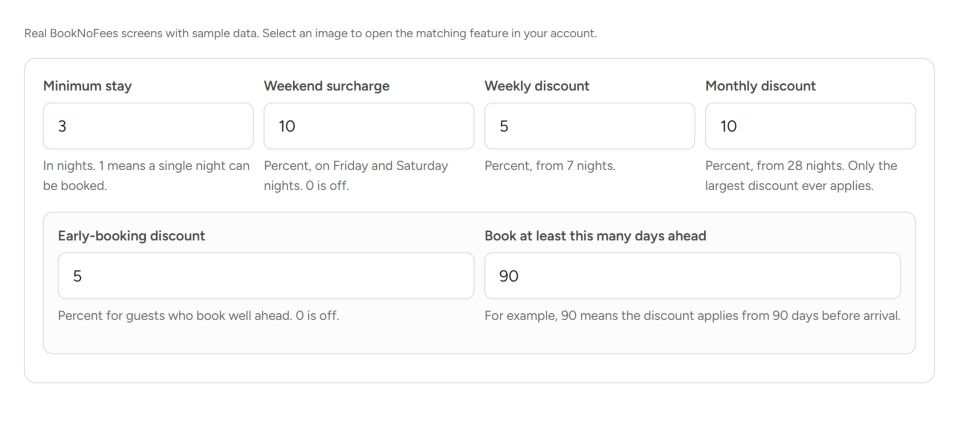
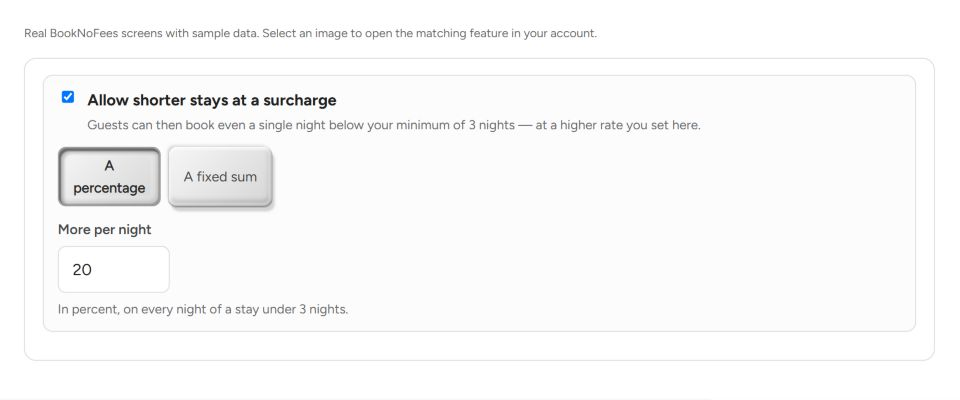
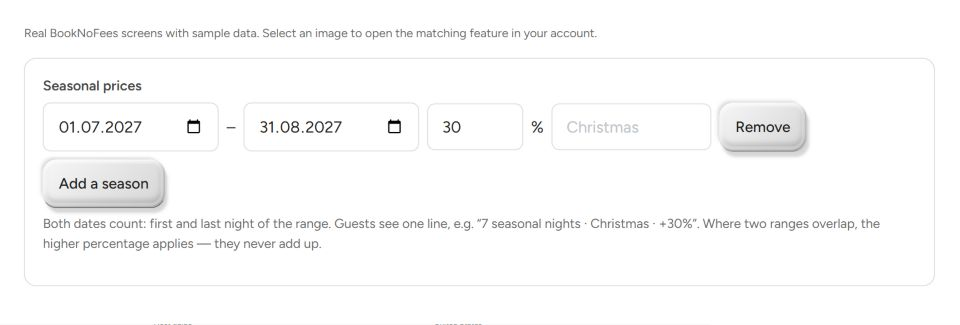
- Minimum stay from 1 to 90 nights; below it guests may still book with a surcharge you set as a percentage or a flat sum. Weekend surcharge on Friday and Saturday nights. Weekly discount from 7 nights, monthly from 28; only the largest discount ever applies. Early-booking discount for bookings a chosen number of days ahead. Seasons: up to 20 periods with a percentage of your base price (100 % is the base, 150 % is high season), a name of your choice; where seasons overlap, the highest wins. A price on a single date in the calendar replaces everything else for that night.
The individual settings
Minimum stay and weekends
Minimum nights sets the shortest regular stay. The weekend surcharge increases Friday and Saturday nightly rates by your chosen percentage. A separate surcharge rule lets you deliberately allow shorter stays.
Weekly, monthly, and early-booking discounts
The weekly discount applies from seven nights, and the monthly discount from 28 nights. For an early-booking discount, set both the percentage and the minimum lead time in days. Check the total using a suitable travel period.
Shorter stays with a surcharge
Enable the short-stay rule to allow bookings below your minimum nights. Choose a percentage surcharge per night or a fixed amount per stay. With a one-night minimum, no shorter booking is possible, so this option is disabled.
Seasonal periods
For each season, add start and end dates, a surcharge in percent, and an optional name. A 30 percent surcharge increases the price of the affected nights by 30 percent. Both date boundaries are included. Where periods overlap, the higher surcharge applies; they are not added together. Up to 20 periods are supported.
Calendar and other portals
- Choose your property and open “Calendar”.
- Choose a month and available days. Save a nightly price or block your selection.
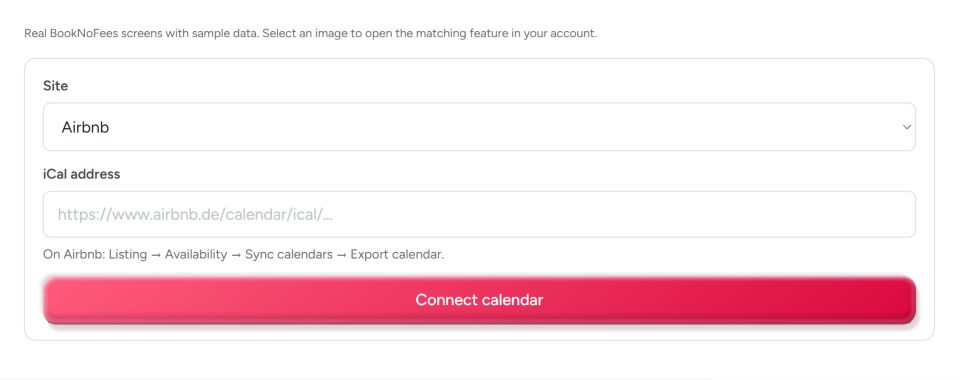
- For a single accommodation, you can connect another portal’s iCal address below.

More details
- What it is:
- Your occupancy: bookings here, dates you block, and the calendars of Airbnb, Booking.com, Vrbo and others connected by their iCal address.
- What it does:
- Blocked dates for own use or a booking made elsewhere. A connected calendar is read regularly; when a portal has not been read for 3 hours the listing shows it, after 24 hours instant booking pauses until it is read again, so no week is sold twice. Your BookNoFees calendar has its own address to paste into the other portals. Several identical rooms cannot sync external calendars.
The individual settings
Price or block individual dates
Open the calendar and select your dates. You can set a specific nightly price, block days, or reset a manual override. Afterwards, check the legend and the affected dates; a block is not a booking.
Connect other calendars
For an external calendar, add the provider and its iCal link. Check the last fetch, synchronize again if needed, and disable or remove outdated connections. In the other direction, enter the BookNoFees export link in the other portal. Importing a listing alone does not create a calendar connection.
Bookings, cancellation, house rules
- What it is:
- How a stay comes about: a request you confirm, or instant booking; plus the deposit, the house rules, directions, the guest handbook, checkout instructions and how guests get in.
- What it does:
- A request reaches you with the card already secured; you have 48 hours to accept or decline, and the guest pays nothing until you accept. Instant booking is offered once three stays have gone through cleanly. A flexible-cancellation option lets guests cancel up to 24 hours before check-in for 10 % more, half of which goes to you. A deposit is settled between you and the guest; BookNoFees never holds it. Directions and entry details are shown to guests only after acceptance.
The individual settings
Pets
Enable pets if they are allowed. Then set their maximum number, the fee, and whether it applies per night or per stay. Explain any additional conditions in the house rules.
Security deposit
Enable a security deposit only if you require one. Enter the amount and select when or how it is provided. Make sure these details agree with your house rules.

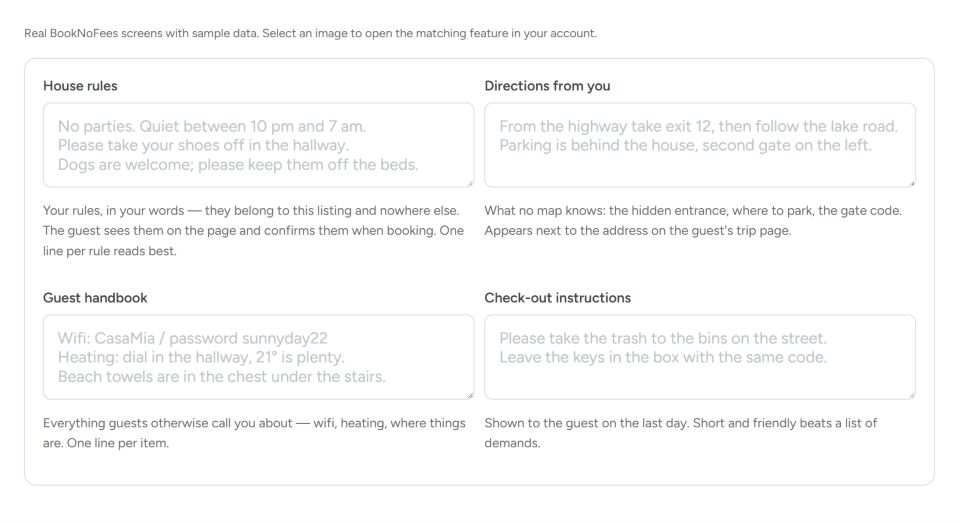
House rules, arrival, and guest information
House rules contain the conditions of the stay. Arrival instructions explain directions and arrival. The guest handbook covers using the property; checkout instructions explain what to do before leaving. Keep these four text fields clearly separated.
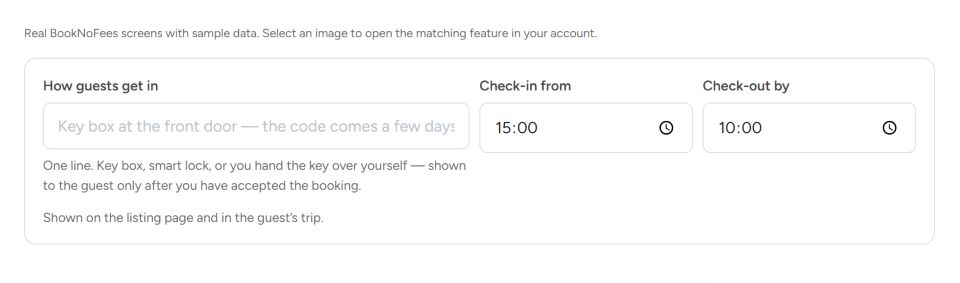
Check-in and checkout
Describe how guests gain access under Check-in method, for example an in-person key handover. Check-in from and Checkout by set the two times. Check that your arrival and departure instructions agree with them.
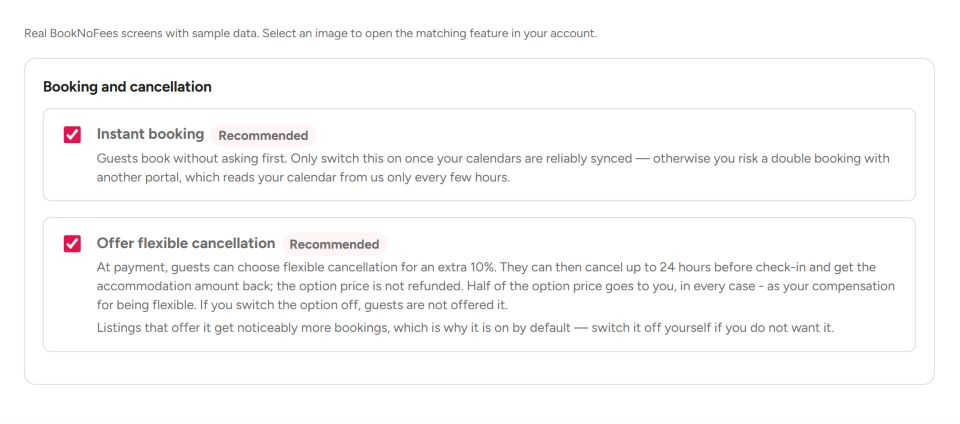
Instant booking and flexible cancellation
The instant-booking switch appears only when your account is eligible and the listing is public. Without instant booking, you decide on booking requests. Flexible cancellation appears only when the platform offers it. A missing switch therefore does not necessarily indicate an error.
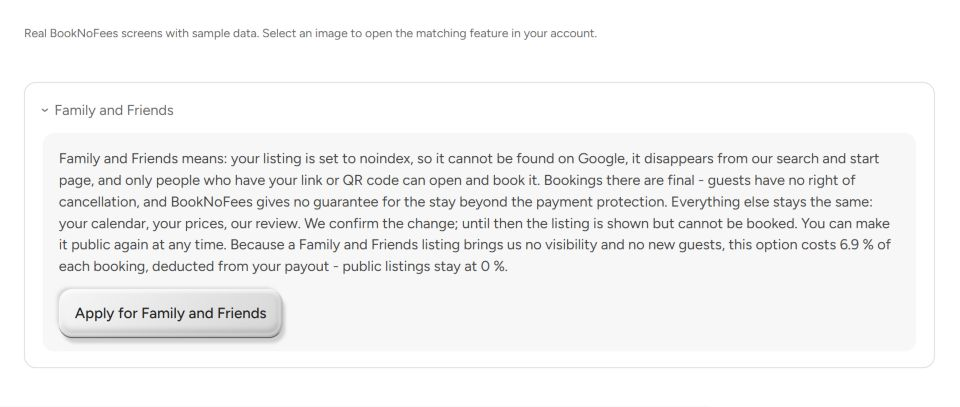
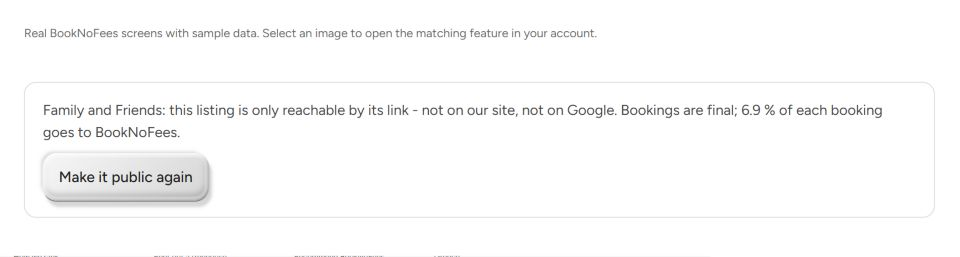
Family and Friends
- What it is:
- A private listing: not on our search or start page, not indexed by search engines, reachable only by its link or QR code.
- What it does:
- For a place you rent to people you know. Bookings are final, there is no cancellation right, and 6.9 % of each booking is deducted from the payout, unlike the 0 % of a public listing. You apply in the listing, we confirm by hand, and you can make the listing public again at any time. A private listing never has instant booking.
The individual settings
Request Family and Friends
At the bottom of a published listing, find Family and Friends. Open the explanation and send your request. The change takes effect only after administration reviews it. Until then, the interface shows your pending request.
A request is not an approval
The request-date message only confirms that your request is on file. You cannot approve it yourself here. Wait for it to be processed, then check the displayed status.

Use privately and return to public
After approval, the listing is private for family and friends: it does not appear in public search or on the map. Share the direct link selectively. Instant booking is unavailable for private listings. Use Make public again to return the listing to public yourself.
Several identical rooms
- What it is:
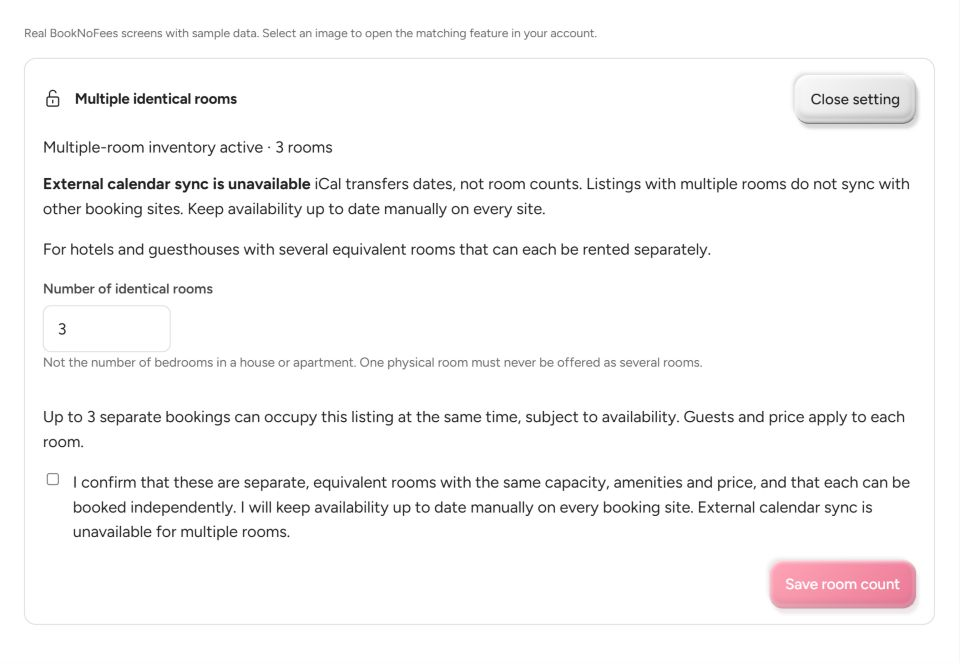
- One listing for a number of rooms of the same kind, as in a guesthouse or a small hotel: up to 50.
- What it does:
- The calendar counts rooms instead of nights: a date is free while a room is left. External calendar sync is off for such a listing, because iCal carries dates, not quantities; you block dates by hand.
The individual settings
Multiple identical rooms
This section appears only for eligible listing types or an existing multiple-unit setup. Unlock the quantity, enter the number of identical units available separately, and confirm the availability notice. This is not the bedroom count of a single property. With multiple units, external iCal synchronization is disabled; maintain availability manually.
Messages and questions
- What it is:
- One inbox for guests, hosts and our support. Guests can ask you a question before they book.
- What it does:
- A question from a listing page lands in your inbox; contact details stay hidden until a stay is paid. You are told by email about a new message (you can switch that off), and the phone app shows it on the lock screen. The support conversation with us is the same inbox.
Payouts and earnings
- What it is:
- Your money goes to your bank account through Stripe; BookNoFees never sees your IBAN and takes no commission.
- What it does:
- A payout arrives 48 hours after the guest has checked in; your first three stays pay one day after checkout. The bank details are set up once in two minutes, the account country cannot be changed later. Your earnings show what is on the way and what has been paid out.
Reviews and how we rank
- What it is:
- Guests review a stay after it ended; the order of search results follows published rules and never a payment.
- What it does:
- Results are ordered by fit, distance, how often signed-in guests saved a place, the host profile (a photo of yourself and the languages you speak rank ahead) and the price. Payments, other sites, how long you have been here and how many listings you have play no part. Should paid placements ever exist, they will be marked as advertising and you will hear about it 15 days ahead.
Your host profile
- What it is:
- What guests learn about you: a photo of yourself, what you do, the languages you speak, where you live, your decade of birth, whether you list privately or as a business, pets.
- What it does:
- Only completed details appear on your published listings. A confirmed email address shows a verification mark on your listing; it means exactly that. The photo and the languages count in the ranking.
Your listings at a glance
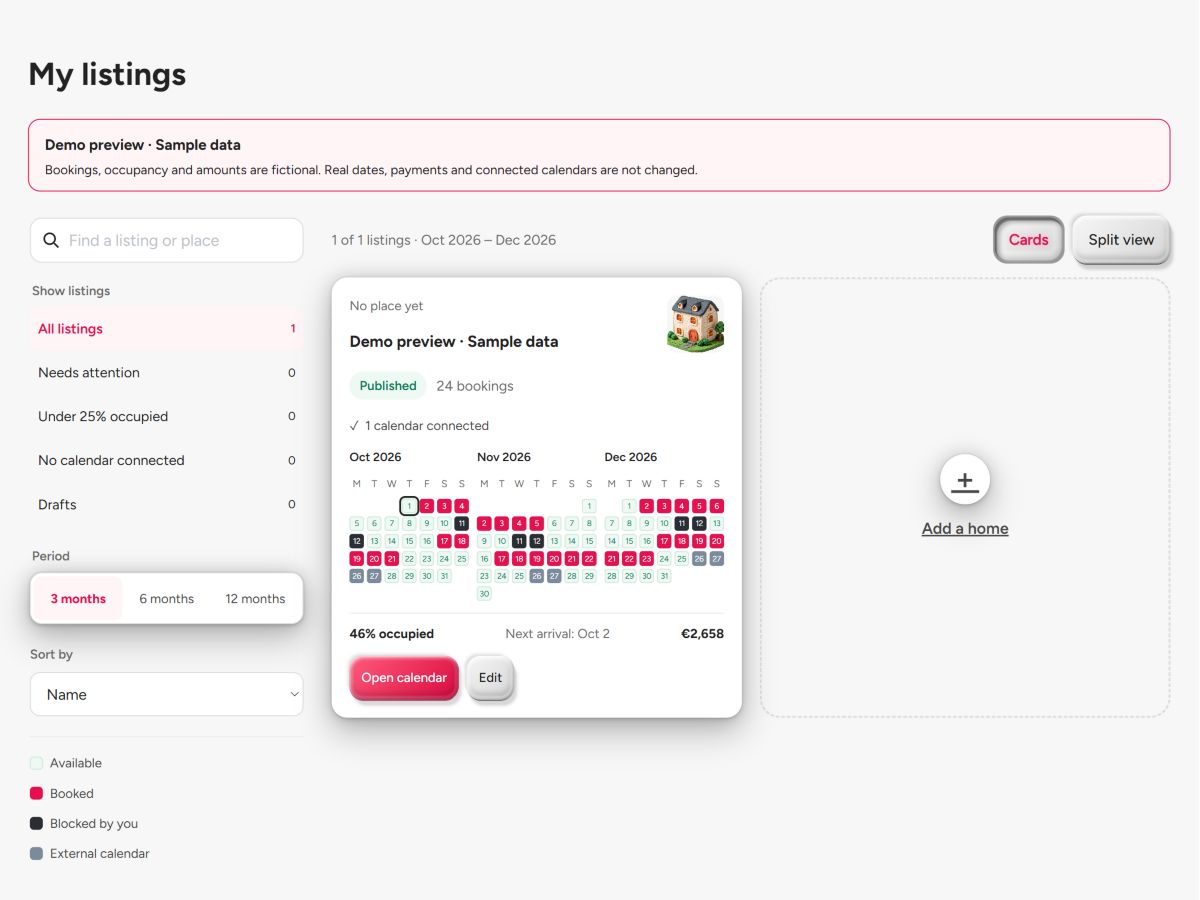
- Open “My listings”.
- Choose the listing card view or split view and the period you want.
- Open your property’s calendar or select “Edit”.
More details
- What it is:
- See all places as cards or in the split view. Choose 3, 6 or 12 months to compare occupancy, bookings and booking values for that period.
- What it does:
- Filter for listings that need attention or are under-booked, see the next arrival, bookings and occupancy, read all calendars again with one button, copy a listing (photos included, calendar not), withdraw or delete one. Drafts, listings in review and published ones are marked.
The individual settings
Draft, review, and publication
My listings shows the current status. A draft is not public yet. Submitted for review means administration is still checking the content. Only a published public listing can appear in search. Use the preview to check what guests see.
Calendar overview, copying, and removal
In your overview, switch between cards and the calendar overview and select a suitable period. A copy starts as a new draft. When removing a listing, read the confirmation shown: a deletion request and permanent removal are different steps.
Currency
- What it is:
- Prices are set and charged in euros. Every visitor sees them in their own .
- What it does:
- The conversion is for display, at daily rates; the guest pays in euros and the amount on their statement is the euro amount. Your fields are always in euros.
Connect Smoobu to BookNoFees
Manage your properties with Smoobu? Connect your account to BookNoFees to bring across properties, availability and prices. Listing is free, with no platform commission on your host amount. Your other portals stay connected.
- In Smoobu, open Advanced → API Keys. Create a separate key for BookNoFees and copy both the API key and the Secret. You need API access in your Smoobu account to use this feature.
- Open “Connect Smoobu” in your BookNoFees account. Enter the API key and Secret in the two fields. BookNoFees checks the connection before saving the credentials.
- Review the imported properties. New properties start as drafts. Matching existing listings are linked; when the match is unclear, choose an existing listing or create a new draft.

The numbers on this page are the ones the site works with. When a rule changes, this page changes with it.